After the event
Once you stop the session, Vox101 finishes processing the audio in the background. Within a few minutes, the recording is ready.
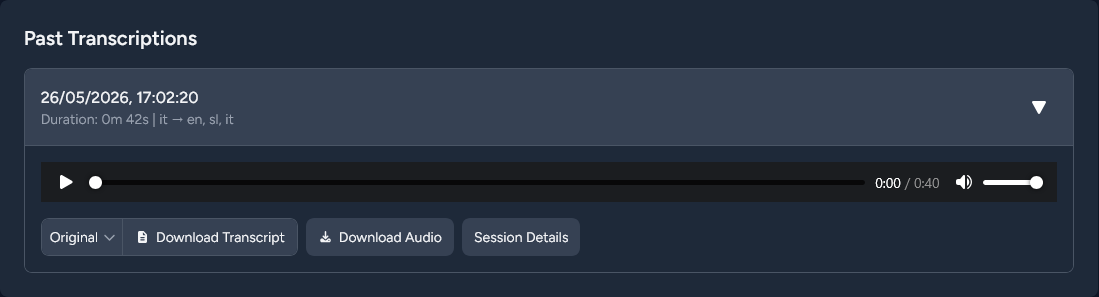
Play back and download
- Open the event from Events.
- Scroll to Past Transcriptions — every session of the event is listed with its date, duration, and languages (source → targets).
- Expand a session to play the recording back in the browser.
Below the player:
- Download Transcript — saves the transcript as a text file. Use the language dropdown next to it to pick the Original (spoken language) or one of the translations.
- Download Audio — saves the audio recording as an mp3 file.
tip
Recordings stay on Vox101 indefinitely unless you delete the event. Pull them down to your own storage if you need long-term archival under your own control.
Run it again
If your event has more than one session — multiple days, multiple talks — just open the controller again and start a new session. All sessions accumulate under the same event so you can find recordings side by side.