Run the event
When you're ready to go live, open the controller for your event — this is where you start and stop transcription and watch the live output.
The controller opens when you click Start on your event — either in the events section or on the event page — the same way you got there in the preparation step.
Final check (before you click Start)
Run through this list:
- Audio source is the right device — by default it's the first computer that joined the event; click Take over on the left to make the device you're on the source instead.
- The decibel meter moves when someone speaks. If it's flat, your mic is muted or the wrong input is selected.
- Source language is correct.
- Target languages show in the preview boxes. Switch the layout between single, split, and quad to match your screen.
- The right vocabulary is selected (the event's default is pre-filled).
- Any displays for the room show as connected in the Displays sidebar (Devices, top right).
- The spectator link is up on screen (or already sent out) for attendees.
Need to add a couple of last-minute terms — a guest speaker's name, a new sponsor — use the ad-hoc context field on the controller. It augments the selected vocabulary for this session only and saves you a round-trip to the vocabulary page.
The interface
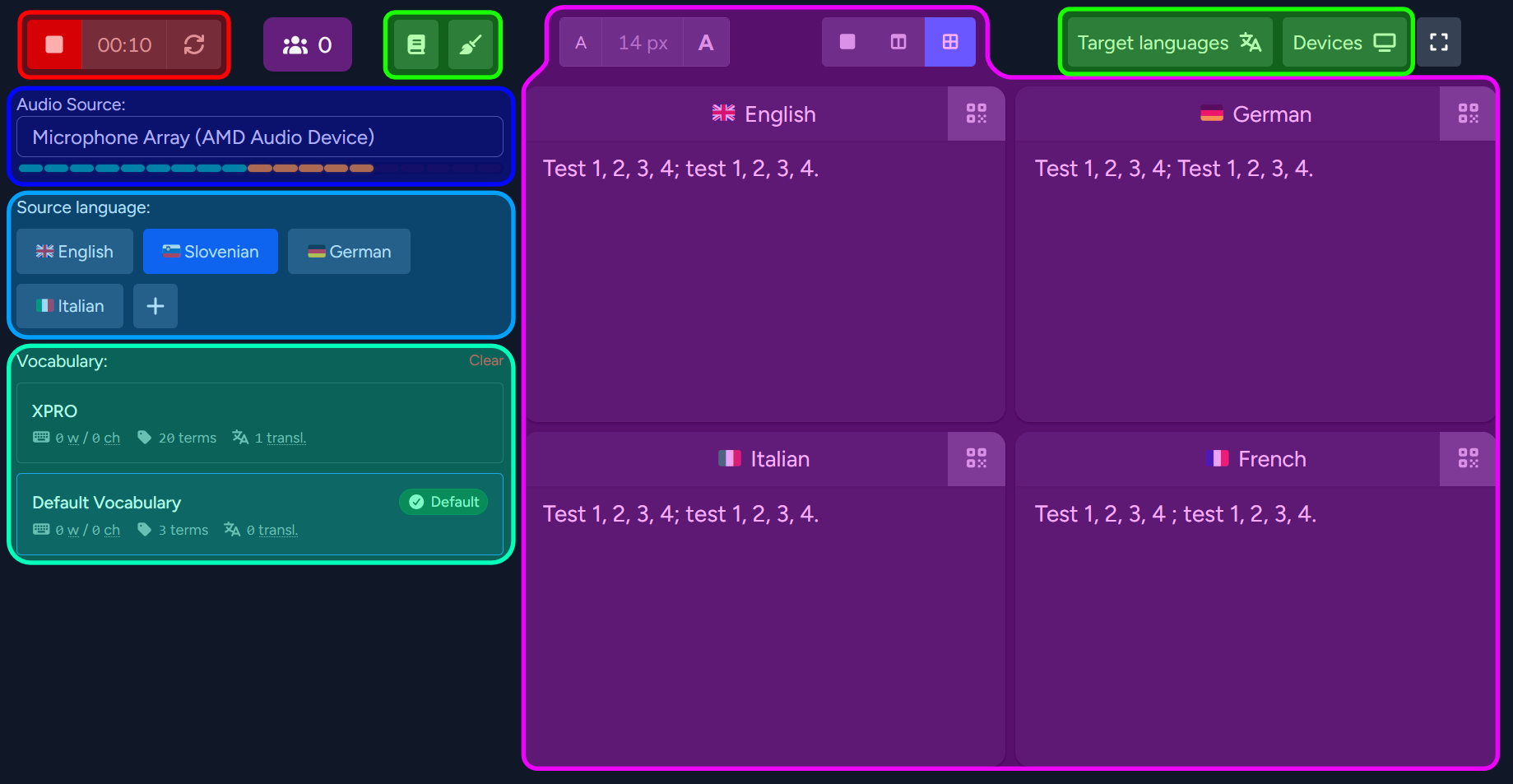
Session controls (top left)
The Start/Stop button begins and ends transcription. While a session runs, the elapsed-time counter ticks next to it, and the restart button restarts the stream — that's also how mid-session changes to the event settings take effect. The spectator counter beside it shows how many people are currently watching via the spectator link.
Next to those sit the ad-hoc context editor (book icon) for last-minute terms, and the clear button (brush icon) that empties the transcript boxes.
Session setup (left column)
- Audio source — the input currently feeding the session, with a live level meter underneath. If the meter stays flat while someone speaks, the wrong input is selected or the mic is muted. If another computer is the source, click Take over to capture from the device you're on instead.
- Source language — the language being spoken right now. Click another chip to switch when the speaker changes, or + to add a language to the list.
- Vocabulary — the vocabularies attached to the event, with the event's default preselected. Click one to switch.
- Clear — deselects the vocabulary to run the session without one.
Live transcripts (centre)
One box per target language streams the live output. Above the grid:
- Font size — adjusts the local view only; displays and the spectator view have their own independent controls.
- Layout — show one, two, or four languages at once to match your screen.
Sidebars and fullscreen (top right)
- Target languages — opens the sidebar for managing which languages are translated.
- Devices — opens the Displays sidebar you used in the preparation step; add or remove displays mid-session if one drops out.
- The fullscreen toggle takes the controller fullscreen for projecting.