Build your vocabulary
A vocabulary tells Vox101 what to expect during your event. The better the vocabulary, the more accurate the live transcript and translation.
Start here, before you create the event. You can reuse the same vocabulary across many events.
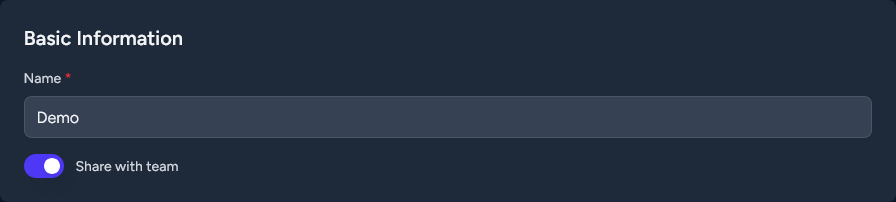
Create a vocabulary
- Open Vocabularies from the sidebar.
- Click New vocabulary.
- Give it a clear, recognisable name — you'll pick it from a list later.
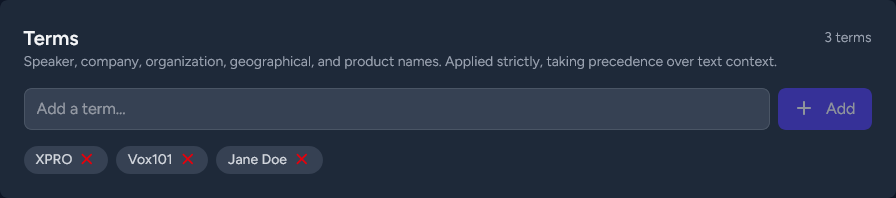
Add terms (most important)
Terms are the single highest-impact thing in a vocabulary. They carry the most weight when the speech engine guesses an unfamiliar word, so spend the most time here.
Use terms for:
- Names of people — speakers, panellists, guests.
- Names of places — venues, cities, regions specific to the event.
- Names of organisations — companies, departments, sponsors.
- Product and project names, acronyms, technical jargon.
To add a term, type it and press Enter. Order does not matter.
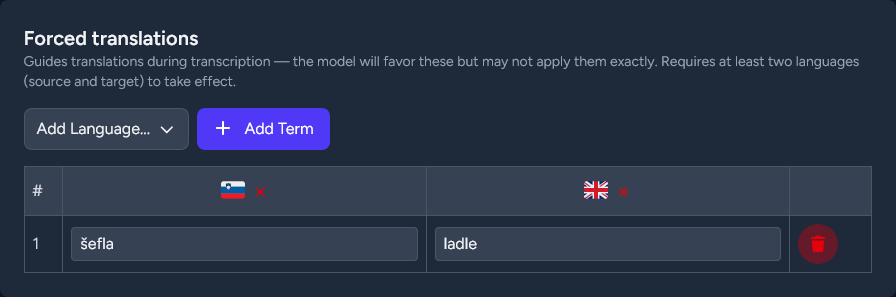
Add translation terms
If a particular phrase must always translate the same way across languages, add it as a translation term: enter the same word or phrase in each language the engine will produce.
Empty languages are ignored, so you can fill in just two languages today and add a third later.
For translation terms to work correctly, you must add at least two languages, usually source and target.
Optional: free-text description
A short paragraph about the topic, audience, or speaker helps the engine pick up general subject matter. This is lower-weight than terms, but useful when your event has unusual subject matter.
Optional: attach documents
You can attach slide decks, briefing notes, programmes, or any supporting document. Supported types include PDF, Word, PowerPoint, plain text, Markdown, and images. Maximum 25 MB per file.
Vox101 will automatically extract terms from your attachments so you won't have to type them in by hand. For now, attachments are stored with the vocabulary but only the Terms section drives recognition.
Sharing with your team
Toggle Shared to let everyone else in your organisation attach this vocabulary to their events. Only you can edit or delete it.