Prepare for the event
On the day of the event, get your audio source and any in-room displays online. Click Start on your event — either in the events menu or on the event page itself — and you land on the controller page, where the whole preparation happens.
For hardware, you have two options. Most setups mix and match.
Option A — Vox101 hardware
Vox101 sells purpose-built devices that plug into your venue and work out of the box:
- Source devices — microphone capture units. Plug an XLR or USB mic in and the unit streams audio to your event.
- Display devices — small computers that drive a projector or screen with live subtitles. Available in three modes: full screen, subtitle overlay, and chroma-key for video mixers.
Reach out to info@vox101.com to order. Devices arrive pre-configured for your organisation — just plug in power and network.
Option B — any laptop or PC
You can run audio and displays from any modern browser — no special hardware required.
- As a source: open the Vox101 app, sign in, and use the controller to pick your microphone (see step 5).
- As a display: open
https://app.vox101.com/display,/display-subtitles, or/display-chromakeyin fullscreen on the machine driving your projector.
Capturing desktop audio (the sound your computer is playing) is only available in Chromium-based browsers — Chrome, Edge, Brave, and similar. Firefox and Safari can capture microphone only. When the browser asks what to share, make sure to check the share audio option, or no sound will reach the session.
Connect your displays
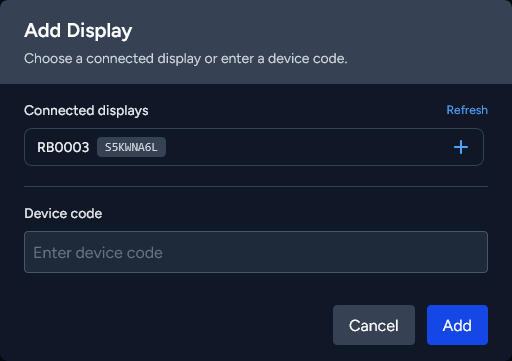
On the controller page, click Devices in the top right to open the Displays sidebar.
- Click Add Display.
- Either pick one of the connected displays — client devices registered to your organisation — or type in the device code shown on the client device's screen.
- Click Add. The display appears in the sidebar and is ready for the session.
Display settings
Everything in the Displays sidebar can be tuned before (and during) the session:
- Font size — one global setting that applies to all displays.
- Languages — per display: choose how many languages it shows (1, 2, or 4) and which ones.
- Scaling — per display, for when you mix and match display resolutions. Pick a preset (100–250 %) or enter a custom value; a 4K display roughly corresponds to 200–250 %.
- Overlay URL — show a web page as an overlay on all displays; leave it empty to clear the overlay.
Pick the audio source
The audio source defaults to the first computer that joins the event. To use a different device instead, open the controller page on that device and click Take over on the left — it becomes the event's audio source.
Final pre-event check
Open the Displays sidebar on the morning of the event and confirm:
- Every display you plan to use is listed and shows as connected.
If a Vox101 device is offline, check power and network on the unit itself. If a browser-based display is offline, just refresh the page.